
The True Purpose of Chess and How It Really Helps in Pattern Thinking
Chess makes us think like strategists and also helps us think in patterns. First, don't let these thoughts occupy you while playing, because you will gradually understand what skills you are gaining while playing chess and learn how to apply them in programs — and even in real life.
There are 3 crucial things we do to win, or rather, rules of chess make us do:
- Analyzing the opponent's move
- Calculating our possible moves
- Picking the move (right / wrong) within limited time
These three can be applied in real life like this:
- Analyzing the current problem / conflicts / needs
- Listing out the actions we can take
- Picking the right action within limited time
This literally helps us make decisions within a limited time. Whether you play chess for fun or are getting good at it as a cool hobby, you will eventually gain quick decision-making skills. And this helps you think in patterns, as you've moved those pieces more than a thousand times in the game — but applying it in real life is the real challenge.
You don't have to be a pro in chess to do this. Just apply the 3 steps in every critical situation. "Play the game in real life, find your own pattern, and follow what works for you."
How I Built It — CANSAT GUI
The Beginning
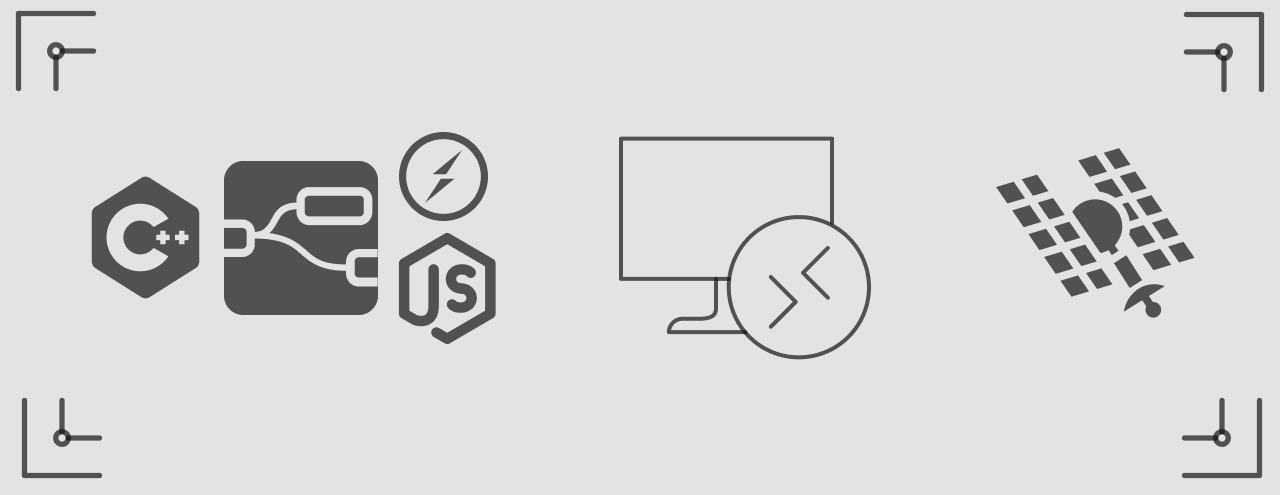
As I joined the team, I was instructed to build the GUI using PyQt or even C++, because that's the usual way to build a GUI that connects with hardware components (Teensy 4.1 microcontroller, BME, BMP, IMU and other sensors, resistors, capacitors, etc.) which communicate through an XBee module for long-distance communication over about 1000 m. All of this setup connects to the laptop running the GUI via USB cable.
This is the actual flow.
Web GUI & Design Phase
But I didn't want to switch to Python or C++/Qt at that time, so I thought: what if I made this a web GUI? Yes, it's possible, it has more features, and the community support is huge.
I started designing the GUI pages in Figma, figuring out what was essential and how to organize the telemetry data and visualize it in a meaningful way. So I categorized each type of telemetry data into sections such as:
- Home page (contains all telemetry data)
- Primary Sensors (crucial telemetry data for the competition)
- Location (telemetry data related to geo-location)
- Orientation (data related to satellite orientation)
- Communication (data related to communications)
Implementation Phase
After completing the design and organizing the necessary assets, I planned how to implement it (the hardest part, to be honest).
I asked people on Discord how to implement this web-based GUI and also asked in subreddits for help.
One person responded well and helped me build the frontend. I used HTML, Tailwind CSS, and packages such as Socket.IO client, Chart.js, Leaflet.js, and Three.js for data visualization, all added via CDN for simplicity. Then I optimized the frontend visualization by swapping in a package more suitable for telemetry. That swap really made a great difference — ApexCharts <-> Chart.js — because ApexCharts didn't support 10 Hz updates, and even when it did, the visualization was too slow or got stuck at times.
Now to the backend — this part was supposed to be done first, but my lack of knowledge at that time made me lean toward the frontend. But now I realize backend suits me a lot more. So I started learning backend concepts and then chose Node.js for one reason: I didn't want to switch languages. Then the important concepts came into play: events, eventListener, eventEmitter, WebSockets, Socket.IO.
Testing Phase & Conclusion
After this, I spent my time testing and integrating the parts we built. I wrote more try, catch, throw as I found more edge cases during testing, and finally organized the folder structure and made it to the competition. As expected, all the other competitors built their GUI using either PyQt or C++/Qt. It doesn't matter which stack you use — it's up to us developers to make it better. The flow I made is below:
Software I Love to Use
Zen Browser
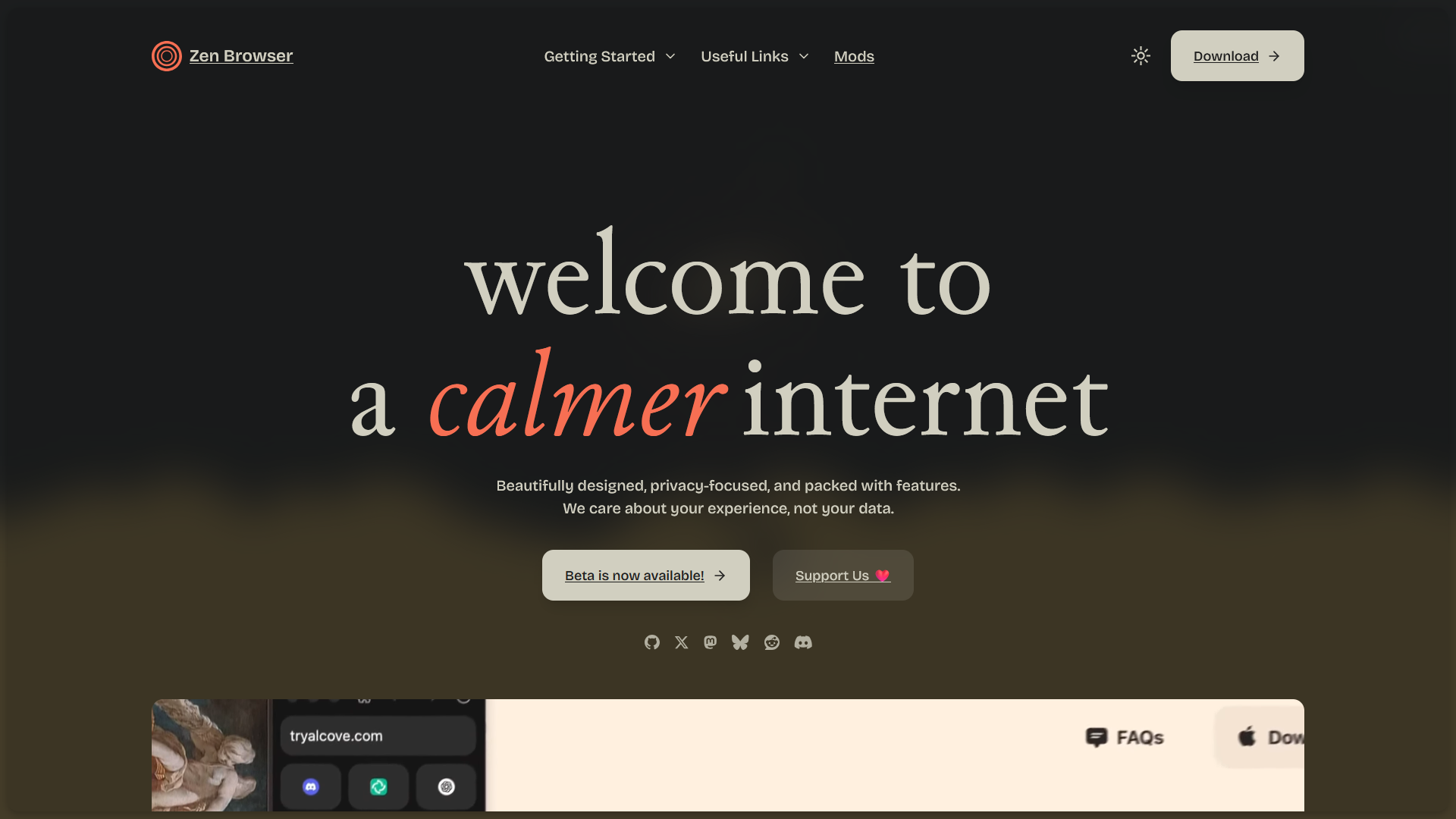
There are many good reasons to use Zen Browser, but let's first talk about the default browser, Chrome. It's not bad, but it's not great either. It uses a horizontal tab manager, and you need to switch profiles or open a new window to use a different account. The performance difference is obvious — if you check Task Manager, Chrome consumes around 30–100% of system resources, while Zen typically uses only 3–20% and rarely exceeds 30% even under peak load. Here are the reasons I use Zen:
- Tab Management: Zen offers a vertical tab manager. Firefox already has this, but what's new here is the compact mode, which opens or closes the sidebar on hover or with a customizable keyboard shortcut.
- Containers / Workspaces: Just as we use containers in development, Zen provides browser containers to keep separate Google accounts isolated. This gives you a cleaner experience across linked apps, and you can switch from one container to another with a single click.
- Folders: You can create folders for groups of related sites. I use them to categorize sites I visit frequently — for example, Blog, Docs, and Media — as well as project folders that contain database, cloud, and PaaS service links.
- Essential Tabs: You can pin the sites you use most, such as WhatsApp or YouTube. Some people prefer native desktop apps for these, but I will explain my choice later.
- Themes & Extensions: Zen has a great marketplace by Sine. The most popular theme is Nebula, but I use Arc for its simple interface with the same transparent and blur effect. Arc 2.0 is not just a theme; it includes significant features such as the ability to install websites as local apps, which looks and feels like using native applications.
- Keyboard Shortcuts: A feature I expect in almost every application is keyboard-driven navigation and customizable shortcuts. I wouldn't expect this level of support in design software, though 😅.
- Other Reasons: Split view, Glance, and updates that genuinely fix issues and add real improvements. Finally, it is a free and open-source project, and I would like to become a donor or contributor in the near future.
Obsidian.md
I have been taking notes for more than four years, and this is the one I will stick with. I previously used Microsoft OneNote, and on mobile I used Xiaomi's default note-taking app. Both are good for simple notes. OneNote is great for organizing unstructured ideas with its whiteboard-like interface. It's flexible and not strictly structured, which can be a drawback. The way you organize notes changes completely in Obsidian.
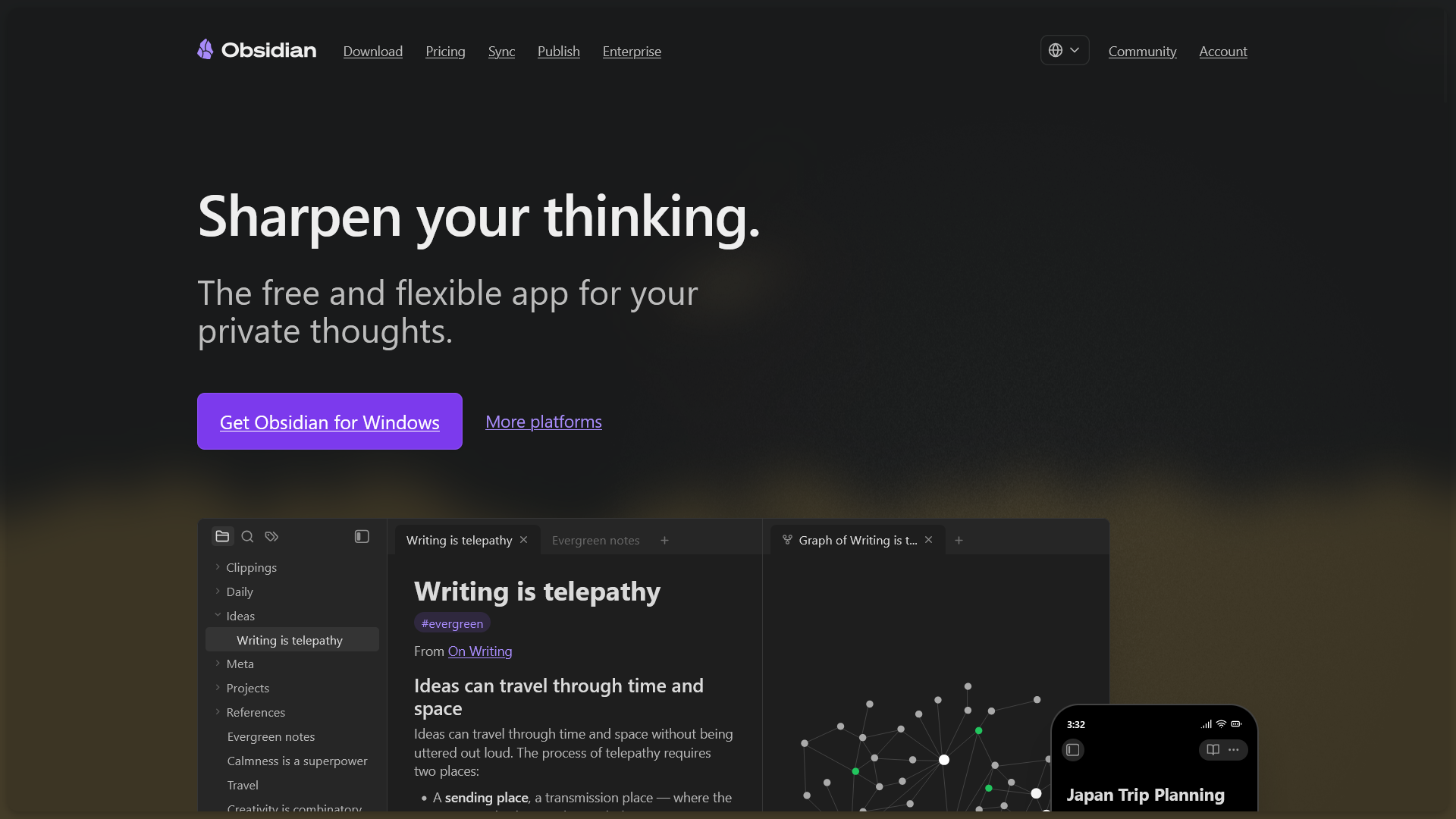
Obsidian is a Markdown-based note-taking app that can be both strict and flexible, structured and unstructured — it is entirely up to you how you use it.
Reasons to use Obsidian:
- Vaults: Many people maintain just one vault, but I prefer to split mine into primary and secondary vaults to avoid complexity. After all, that is the whole point.
- Markdown: Many people dislike Markdown because LLMs have overused it, but I have been using it long before AI became popular. It is a simple syntax for creating clean documents, and for someone who reads and writes many README files, it is ideal.
- Community Plugins: Obsidian is not open source, and I respect that decision — Kepano, the CEO, has explained the reasoning and it is understandable. As developers, we can still build our own features and publish them as plugins, so you can get features no other note-taking app offers. The most popular one is the Excalidraw plugin — yes, Excalidraw inside your note-taking app — along with many other extraordinary plugins and themes published by both the community and the official team.
- Local Files: All your files stay on your local computer — they aren't going anywhere. If you want to sync with the Obsidian mobile app or other desktops, you can buy their subscription or use a free community plugin that provides the same sync capability via cloud services such as Google Drive or OneDrive, or even use Git and GitHub for version control. Having version control for your notes is an unexpected but powerful feature. There are no limits with the growing community. Obsidian also offers paid Sync and Publish features, where you can publish your notes publicly on their dedicated Obsidian domain — a great feature for non-programmers such as bloggers and authors.
- Other Reasons / Features: Web viewer, Graph view (backlinks), Bases, Bookmarks, Command Palette, and countless plugins from the community.
WSL — Windows Subsystem for Linux
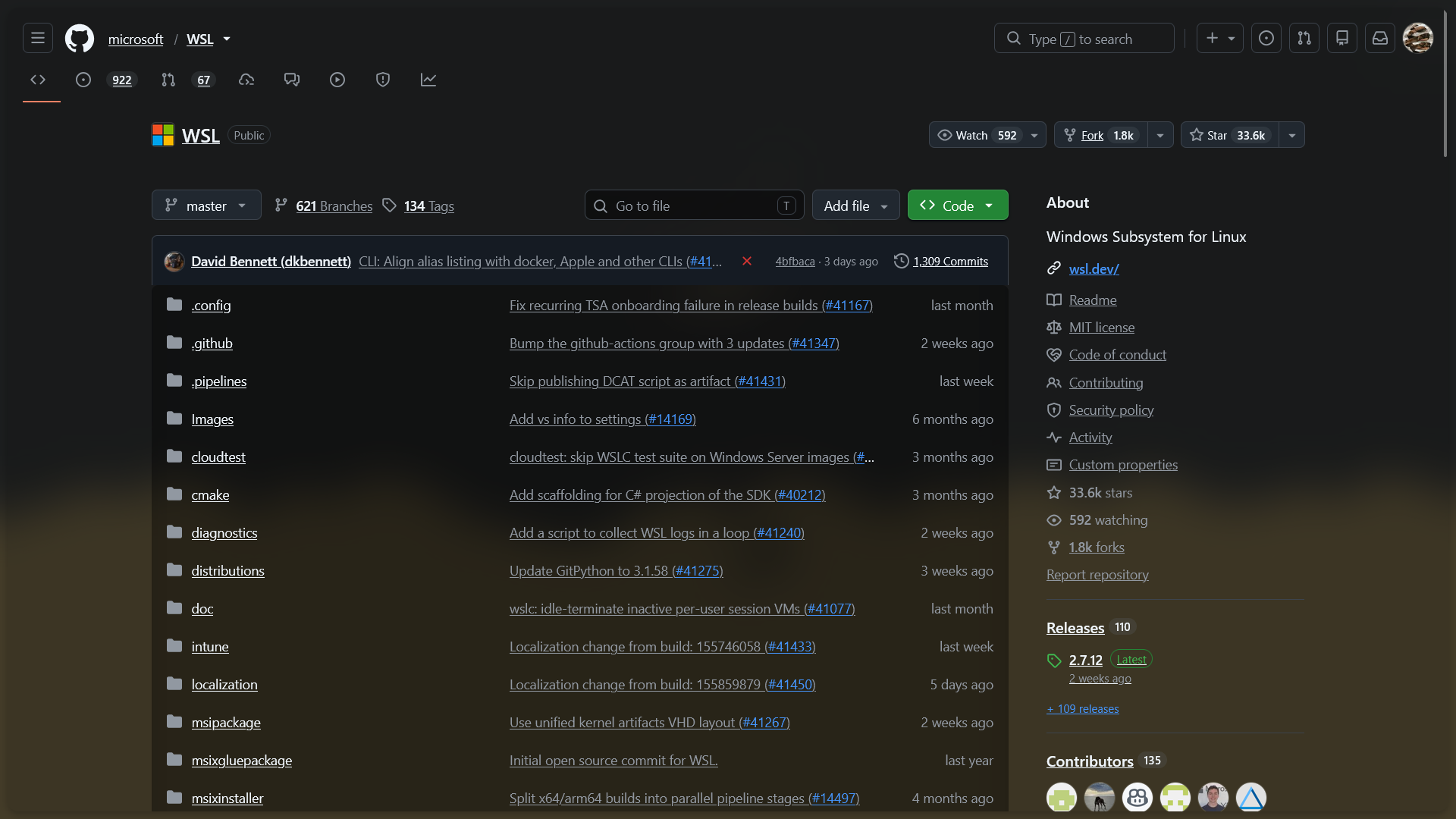
Most of the developer community dislikes Microsoft — that's not what I want to discuss here, because no one can fully defend its track record. However, Microsoft has built something I genuinely appreciate, even as a Windows user. I never thought I would say this, but WSL is one of the best packages I use in my current development environment. For context, WSL runs Linux inside Windows without needing a VM or dual boot. It's a different implementation that shares the same resources as Windows instead of allocating them separately, and it runs like any other Windows application.
The reasons I use it are simple:
- Windows isn't the best development environment on its own.
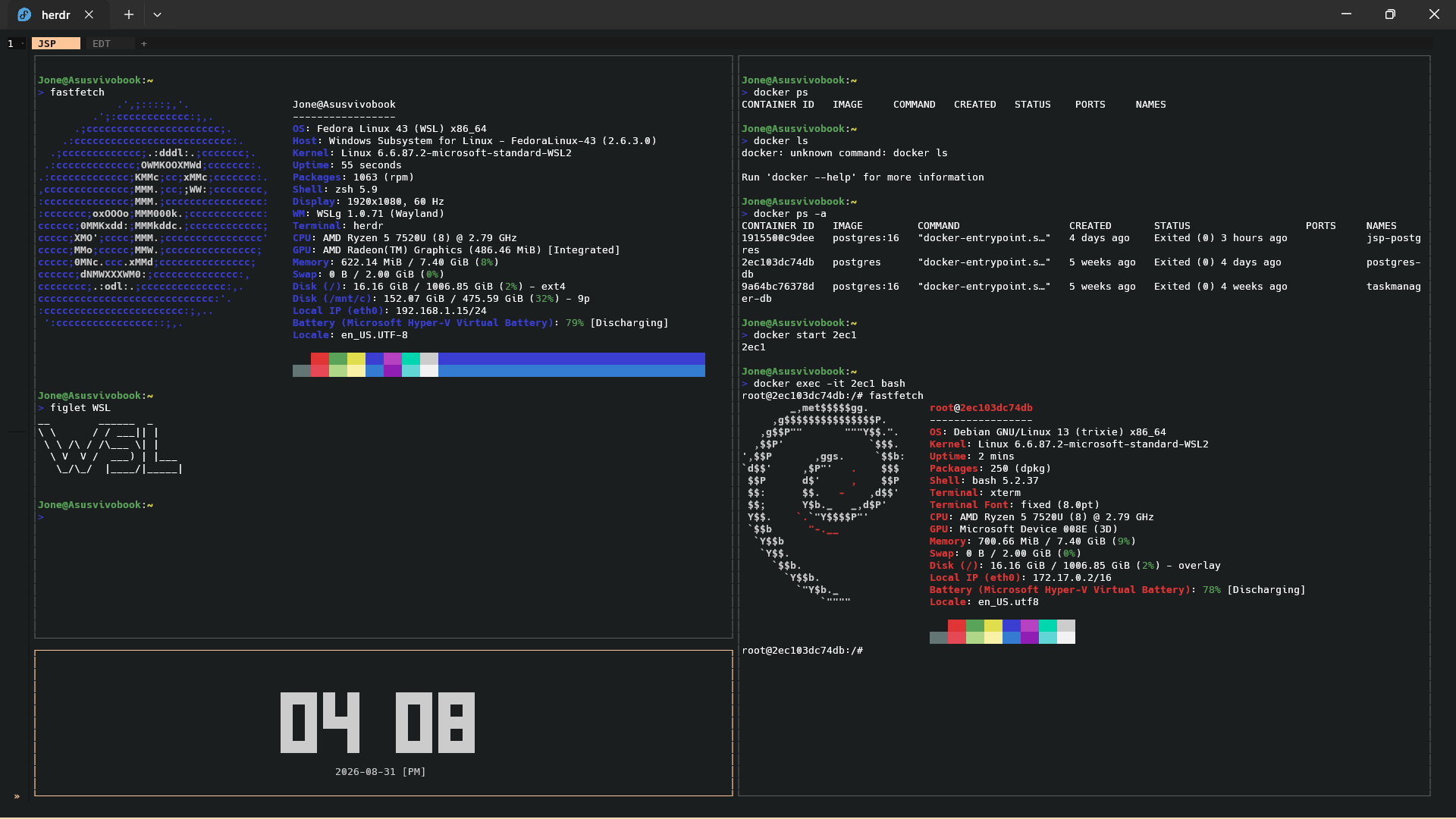
- It provides a Linux CLI inside Windows — great for development environments with tools like nvm, pipx, Docker CLI, and for using CLI/TUI applications.
- You can install any distro you want (each occupies only 1–3 GB). I use Fedora for its simplicity and have never needed more than one distro. Even if I did, I would use dev containers. Take a look:
There are many CLI/TUI applications I would love to discuss, but that's for another day. Thanks for making it this far — I wish you good luck in whatever you pursue.
Should We Use AI to Code or Do It Ourselves?
There are two sides to this:
- Business-oriented — use AI for a productivity-rich workflow: implement and fail fast, iterate until the best outcome, automate tasks, and focus on designing the architecture of the system.
- From some experienced developers' POV — don't let slop code enter your codebase, and use your brain to think and code.
I think I can draw the line: use AI to code, but do the thinking yourself. Another thing — you have to understand what the code actually does before pushing it or adding a new feature.
We can't totally neglect AI — it is really useful for boilerplate code and also good at teaching. If privacy is a concern, we can move to local LLMs, but the cost is literally huge for the GPU and computing power. My work isn't that secret, so I choose the normal path. I use OpenCode and Herdr with free AI models, since my use cases never exceeded that need. I'm also trying to use the bmad-method for agents & skills and customize them to my use cases. In the future I'll try to add my workflow here.
As a backend engineer, I prefer to focus on the logic and content of this site, so I use AI for repetitive frontend work like making the layout responsive. I wouldn't let AI write the content of this site — I use it for boring work and never let it touch the organic content and creative thinking process.
Being an extremist never ends well, and we've seen this pattern in history many times. So learn to be in the gray area.
FTTA — Building a Faculty Time Tracking Application for 500+ Users
Most private institutions still track faculty attendance on paper or in messy spreadsheets. FTTA was built to fix that. It's a full-stack web application that lets the admin monitor faculty availability, track their sessions, and keep student attendance records — all from a single dashboard.
The core requirement was access control. Only emails from the organization's allowed domains can log in, implemented with Google OAuth 2.0 and role-based access control (RBAC) through Passport.js. Admins see everything; faculty log their sessions and student details.
It's running in production right now with 500+ active users, deployed using Docker, Vercel, and Heroku. The codebase is currently closed source.
IMDF — A REST API to Filter Images by Their Metadata
Image Metadata Filter (IMDF) is a REST API that stores images in the cloud and lets you filter them by the metadata embedded in the files — geo-location, capture date, device name, and more.
Uploads are handled with Multer, files are stored in Cloudinary, and the metadata is persisted in MongoDB. The API is built with Node.js and Express, and deployed using Docker and Render.
The server-side logic stays simple: extract the metadata on upload, store it alongside the file reference, and return filtered results based on query parameters.